
How to Calculate Chronological Age By Hand And in Excel
Quick Answer
To calculate chronological age, subtract the date of birth from the test date: days first, then months, then years. If the days are negative, borrow one month and add its days to the day column. If the months are negative, borrow one year and add 12 months. Write the result as years;months;days.
For example 17;6;21.
Key Points
Have you ever tried to calculate your exact age and got confused between days, months, and years? Sometimes the numbers don’t match, and you’re not sure where you went wrong. We know one small mistake can give you the wrong result.
In this guide, we’ll show you how to calculate chronological age manually and explain a quick Excel method for accurate age calculations. We’ll also compare different methods so you can choose the one that works best for your needs. If you want instant and accurate results, try our free Chronological Age Calculator in years and months to find your exact age in years, months, and days within seconds.
Whether you want to calculate, determine, or find your chronological age, the process is the same: compare your date of birth with a reference date and calculate the difference in years, months, and days.
How To Calculate Chronological Age Manually
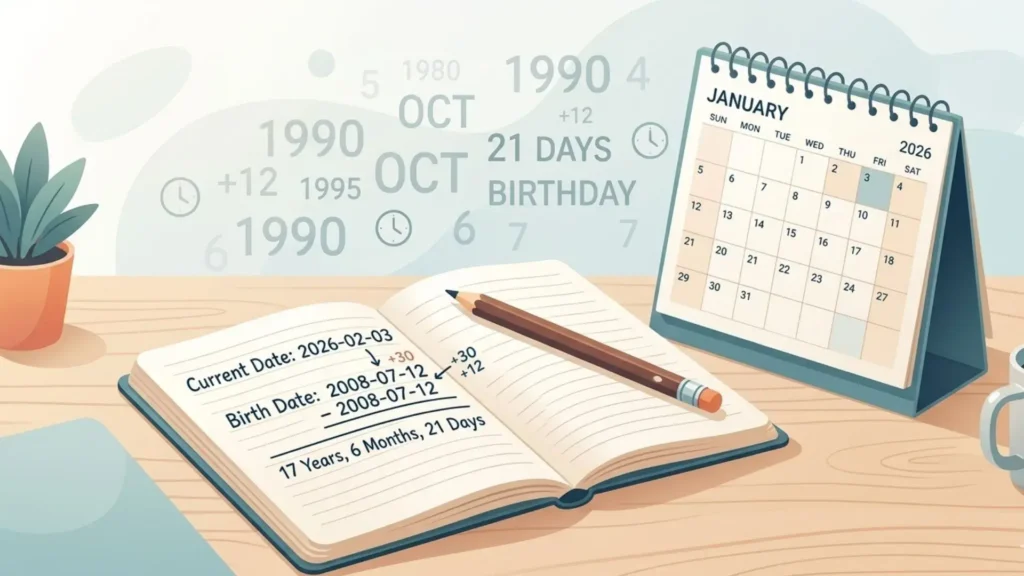
To calculate chronological age manually, you have to subtract the date of birth (year-month-days) from the given or current date. Remember, in the chronological age formula, always subtract the days first, then months and then years at the end. Always, watch out for these common chronological age mistakes.
To make you better understand the process of calculating, Here’s a chronological age example;
If someone was born on July 12, 2008, and today is February 3, 2026, their chronological age would be 17 years, 6 months, and 21 days.
(This example shows how to figure out chronological age using dates and the borrowing process when the birth date is greater than the current date)
Let’s take it Step by step:
1: Alignment:
Write the current or given date on top and the Birth date in bottom, just below the top date. The vertical alignment like we used to do in our schools.
2: Days:
Start with the days first. Subtract the birth date from the current date. If your birth date is greater than the given date, borrow 30 days from the month.
3: Months:
Next, subtract the months and if the birth month is greater than the current month, borrow 12 (months) from the years, then minus the months.
4: Years:
Finally, subtract the birth year from the remaining years, in this case subtract 2008 from the remaining 2025. By doing this, you will get the results.
Step-by-Step Chronological Age Calculation:
| Category | Year | Months | Days |
| Current date | 2026 | 02 | 03 |
| Date of Birth | 2008 | 07 | 12 |
| Result | 17 years | 06 months | 21 days |
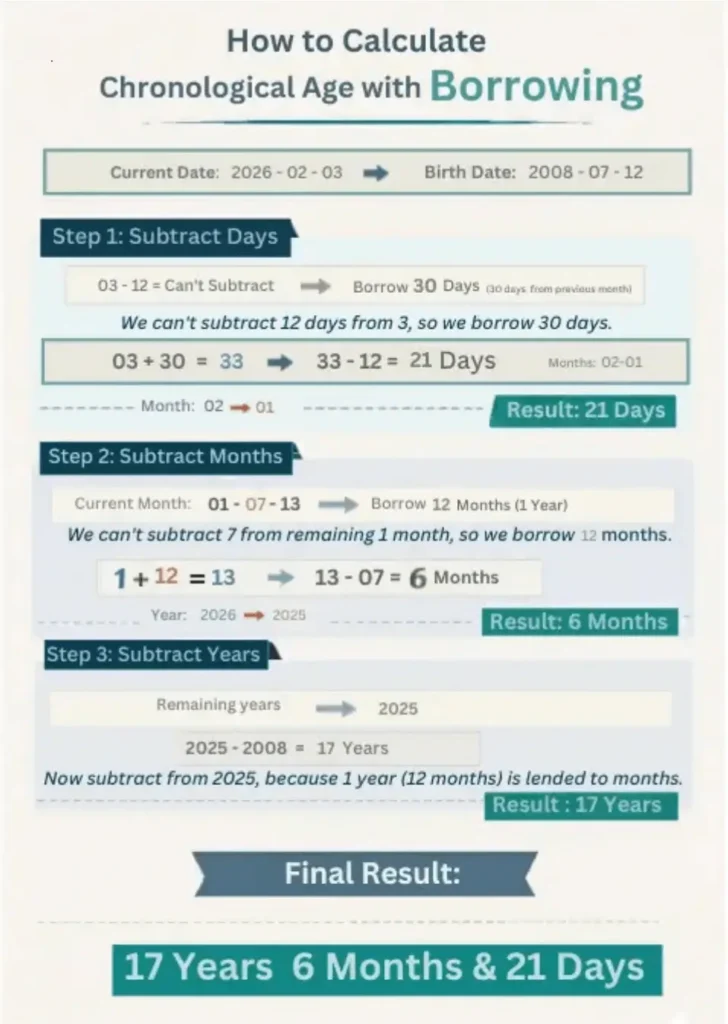
- Step 1 (Days): Since 12 is greater than 03, we borrow 30 days from the months section. Now, 33 – 12 = 21 Days.
- Step 2 (Months): After lending, only 01 month remains. Since 07 is greater than 01, we borrow 12 months (1 year) from the years section. Now, 13 – 07 = 6 Months.
- Step 3 (Years): We are left with 2025 years. Subtracting the birth year, 2025 – 2008 =17 Years.
- Final Result: The total age is 17 Years, 6 Months, and 21 Days.
Pro Tip:
You can also find out “How old am I?” today or “How old was I?” on any past date using our Chronological age calculator tool. This is perfect for school eligibility, age tracking, or official record purposes.
Note:
This example uses the 30-day method. With the calendar method you add January’s real 31 days instead of 30: 34 − 12 = 22, so the result is 17;6;22. Both are correct; they are two different rules. The next section shows when to use which.
Calendar Method vs 30-Day Method: Which Should You Use For Manual Calculation
Both methods subtract in the same order. They only differ in how many days you add when you borrow a month.
Simple rule: for standardized testing, use the rule in the examiner’s manual, because the norm tables were built with it. For everything else, use the calendar method. Our chronological age calculator does both: calendar months by default, with a 30-day option. Not sure which date to enter as the test date? See our rules for chronological age for testing.
Used to Pearson’s old calculator? See our Pearson age calculator alternative.
12 Worked Examples Of Age Calculation (Both Methods)
Every result below was checked with code. When both methods agree, that is the answer either way.
Birthdays on the 29th, 30th or 31st
Sometimes one borrow is not enough with the calendar method. Born January 31, 2016, tested March 1, 2024: 1 − 31 is negative, and adding February’s 29 days still leaves −1, so you borrow again from January (31 days): 8;0;30. The 30-day method adds 30 once and gets 8;1;0. Check these dates twice.
How to Write Chronological Age
“6;0” means 6 years and 0 months. It does not mean 6.0 years.
Who Can Benefit From This Tool
Teachers
The tool is Ideal for classroom placement of students and monitoring their educational growth.
SLPs
Handy tool for Speech-Language Pathologists to track development on life stages.
Parents
Perfect tool for checking school eligibility and official record tracking for your children.
Legal Professionals
Lawyers and administrators can quickly verify exact ages for legal documents, licenses, and official applications.

How to Calculate Chronological Age in Excel (Quick Method)
Manual calculation is useful when you want to understand the logic, but it’s not always practical, especially when you’re working with multiple records. If you’re a teacher, clinician, or managing a list of students or patients, using Excel (or Google Sheets) can save you a lot of time. You can use a simple function called DATEDIF to calculate chronological age automatically.
If you have a list of people and need their exact ages instantly, follow these 4 simple steps:
Step 1: Input Data
Open Excel and enter your dates into these specific cells:
- Cell A2: Serial Number
- Cell B2: Name
- Cell C2: Date of Birth (13/05/2006)
- Cell D2: Reference Date (31/03/2026)
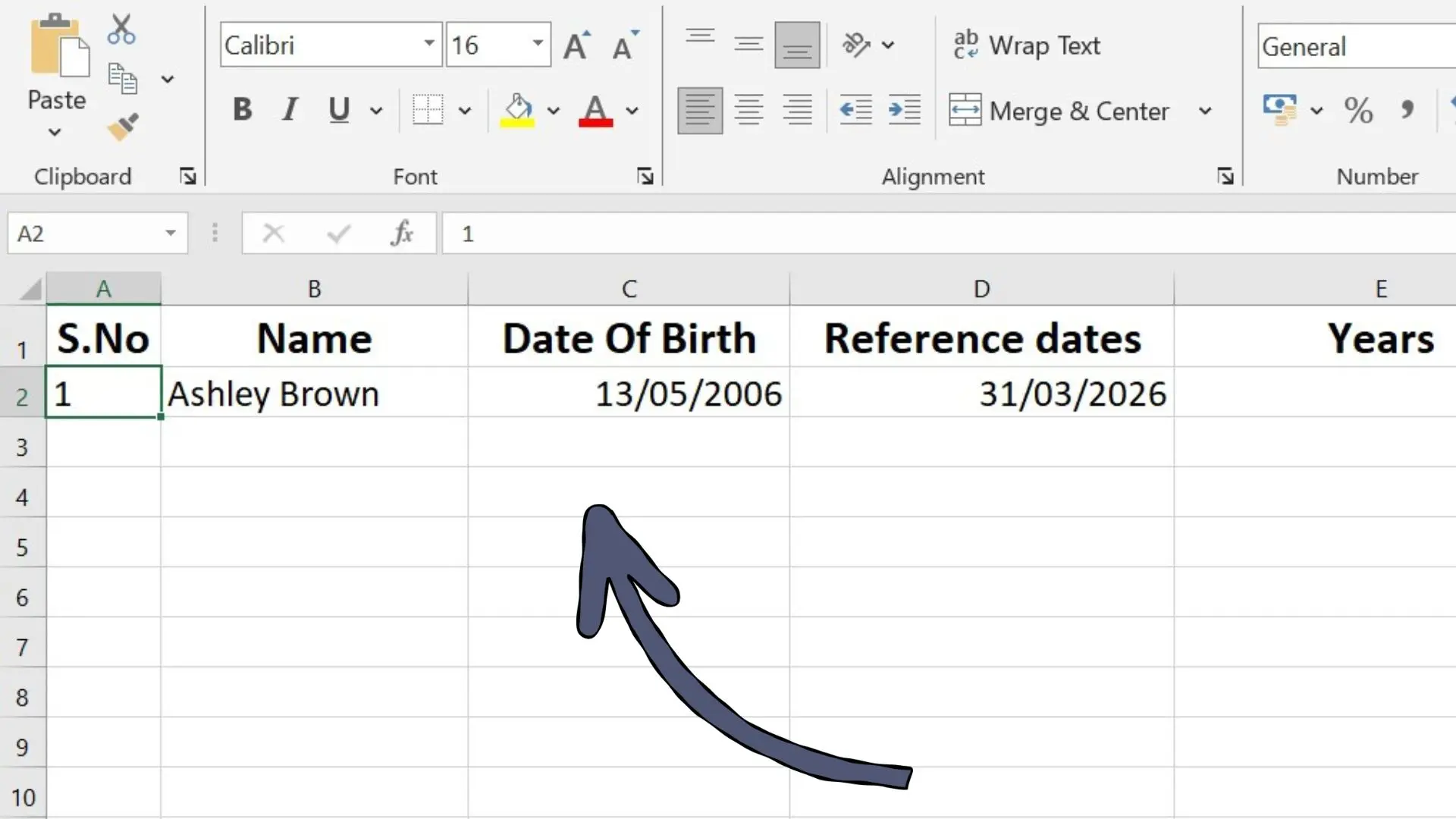
US readers: our screenshot uses day/month/year (13/05/2006). On a computer set to US format, type the same date as 5/13/2006. Typing 13/05/2006 there gives a #VALUE! error or the wrong date.
Step 2: Enter Formulas
Paste these codes into the cells next to your data of DOB and reference dates:
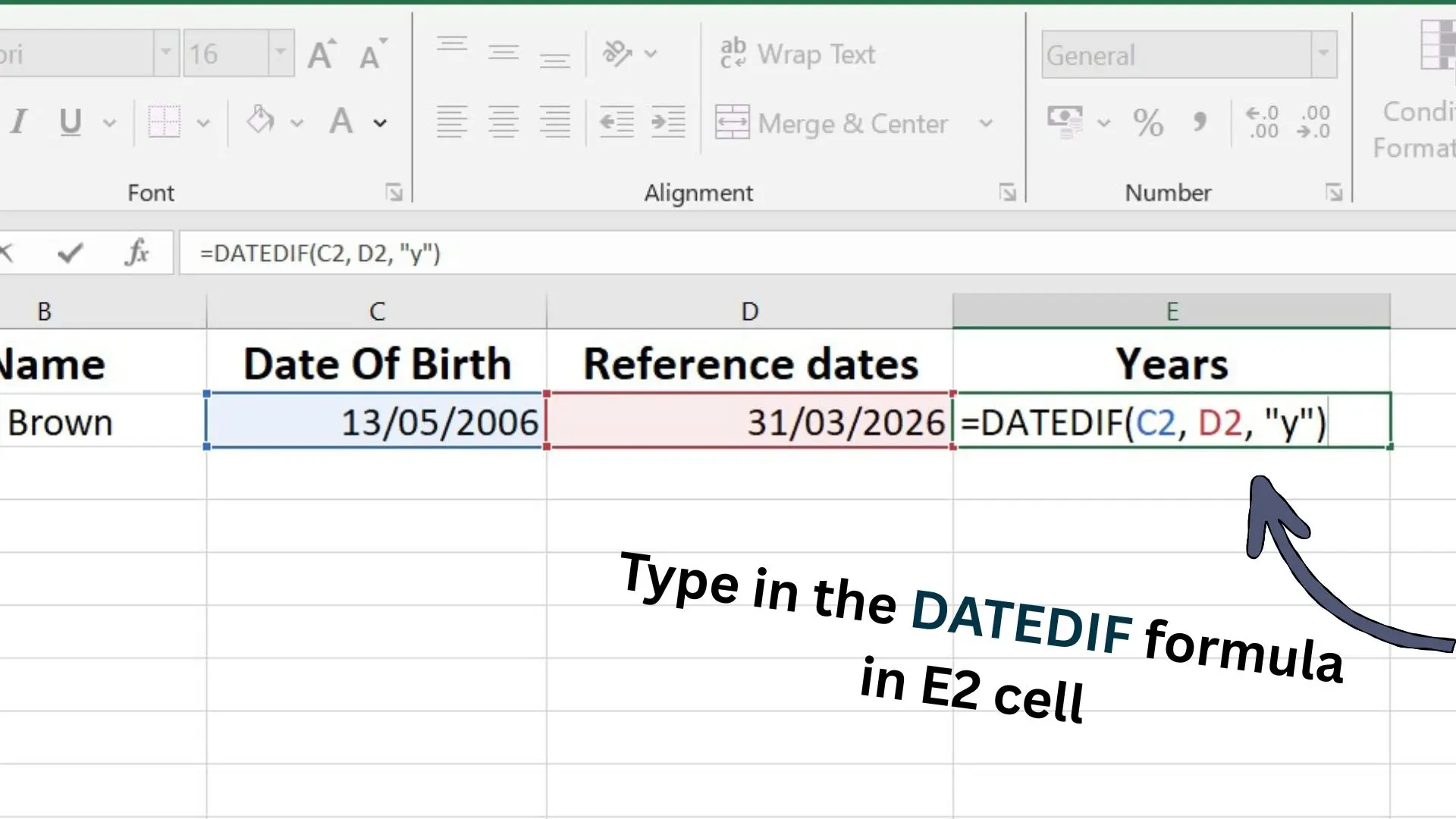
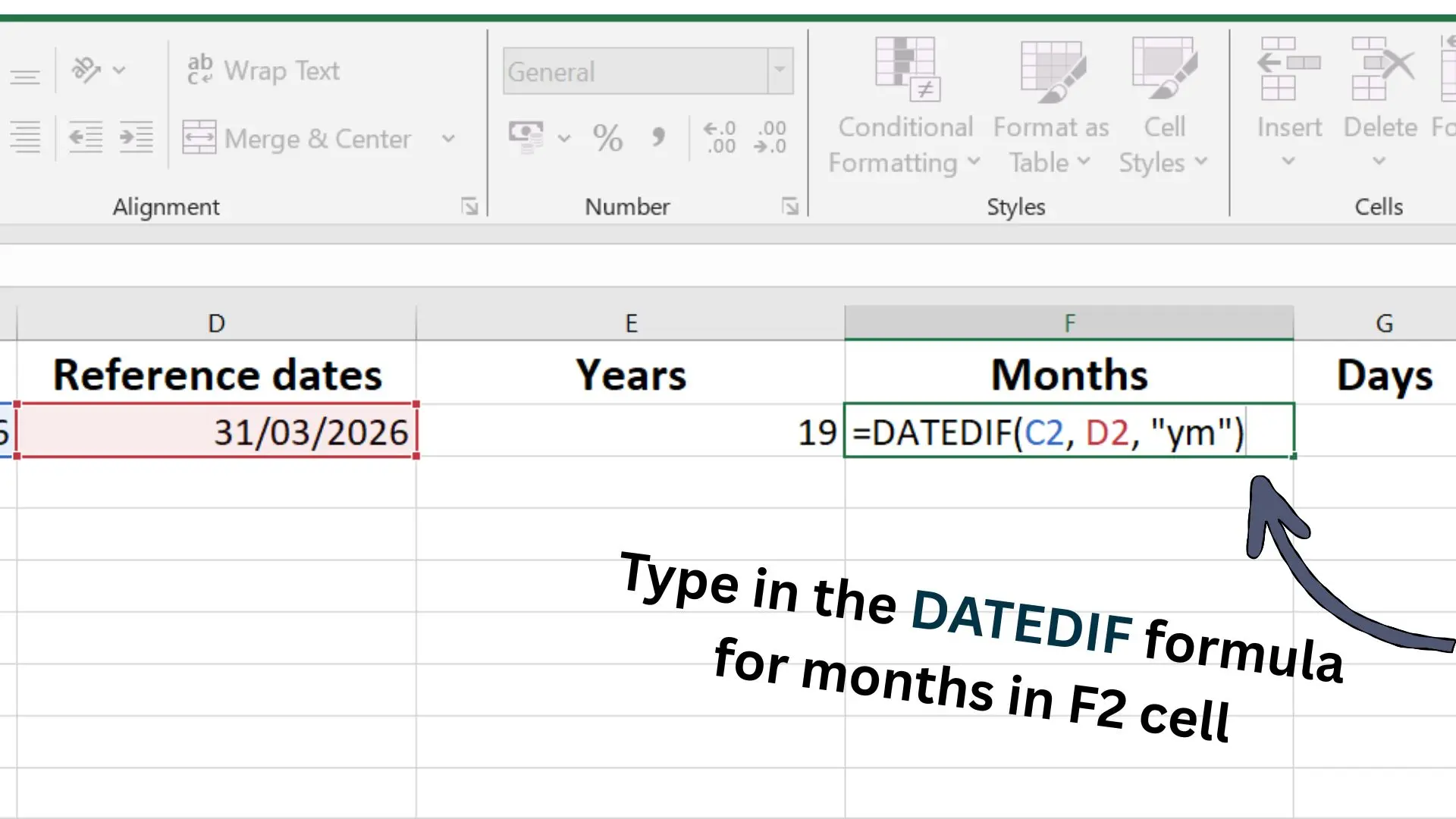
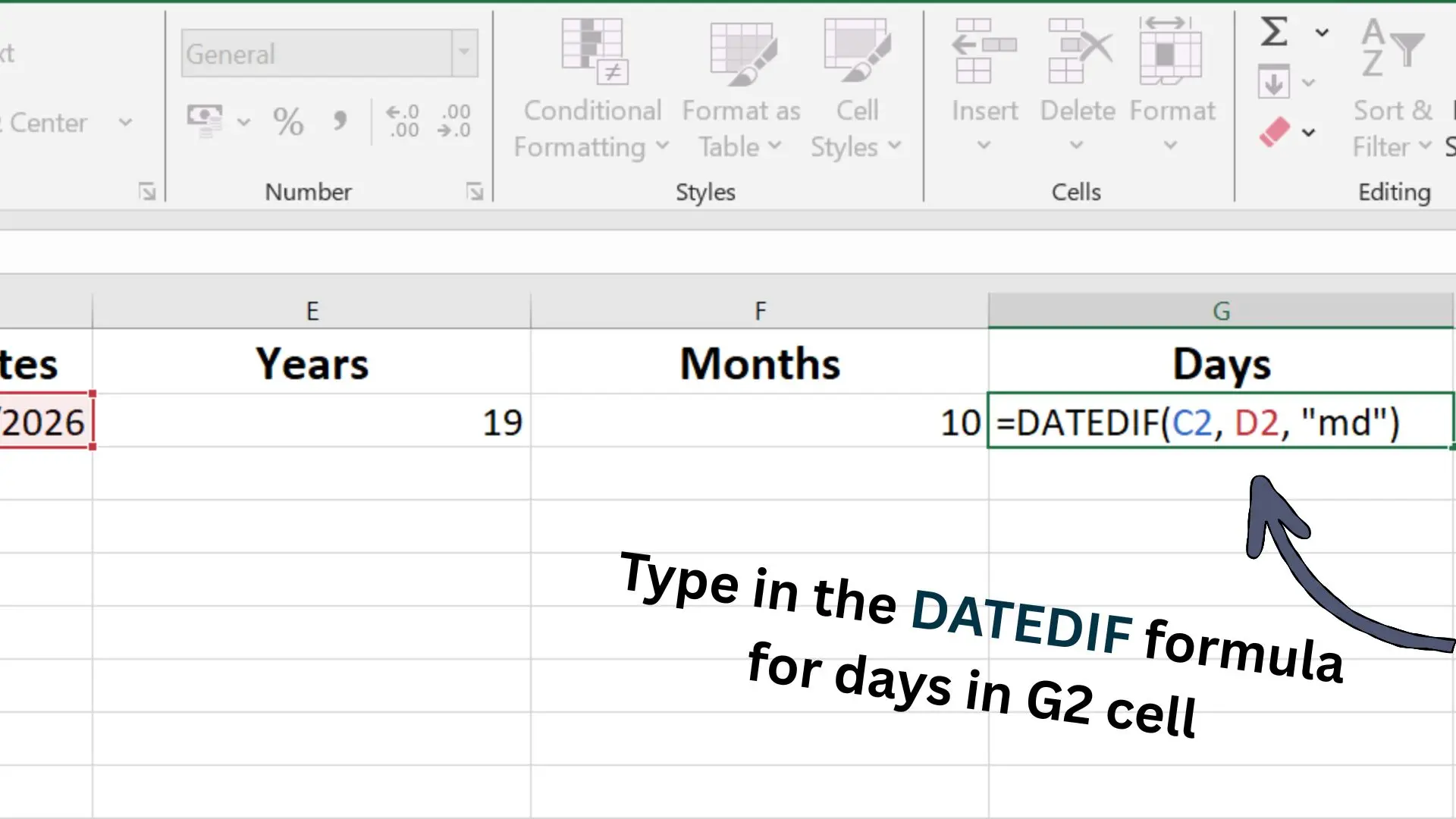
Step 3: Check Results
Press Enter to see the numbers. For example, If you see E2= 19, F2= 10, G2= 18, the age is:
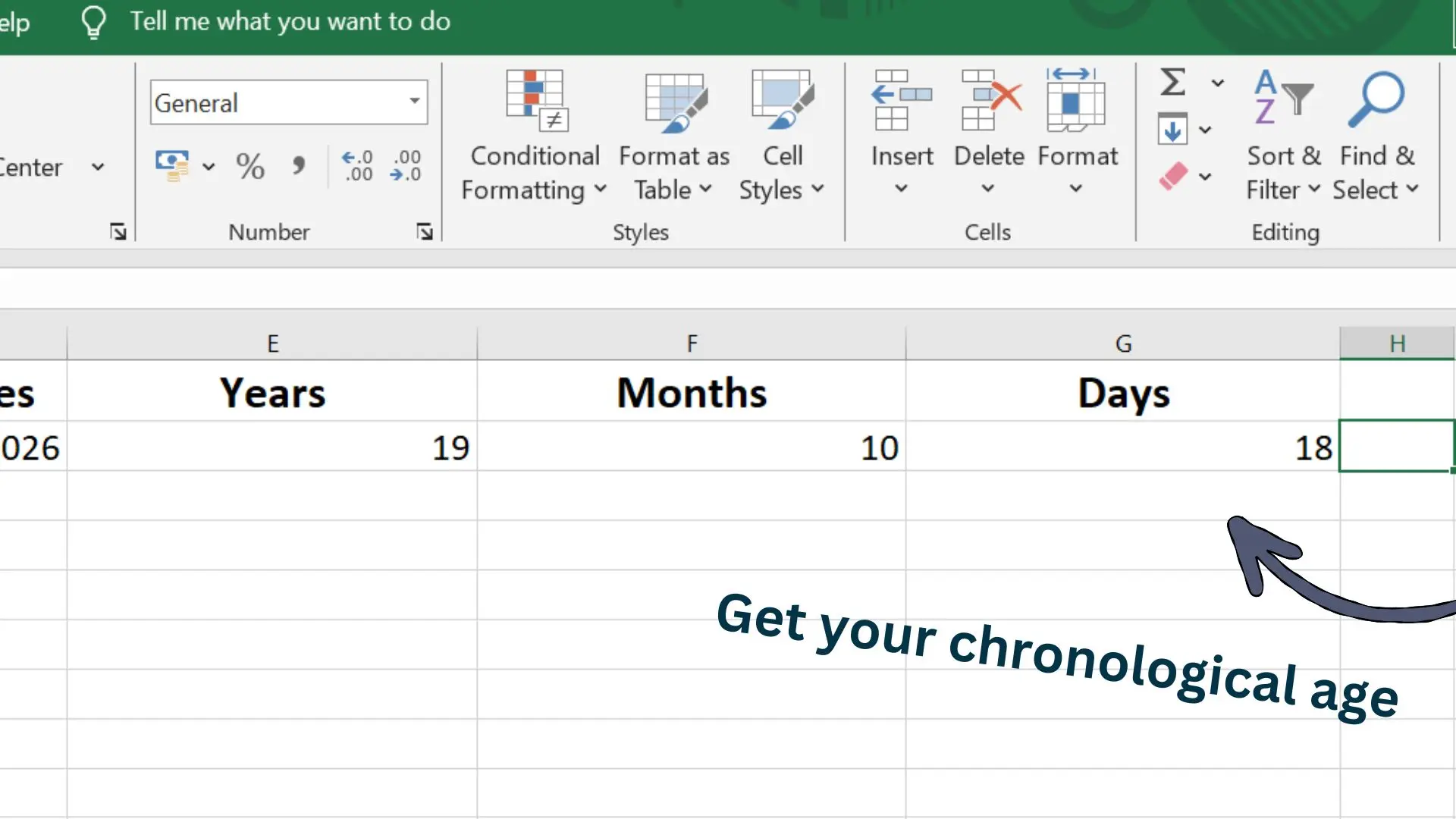
Good to know: Microsoft warns that the “MD” argument “may result in a negative number, a zero, or an inaccurate result.” Our example is correct, but for some dates, especially birthdays on the 29th–31st, “md” can go wrong. For a safer days result, use this in G2 instead:
It matches our calculator for birth days from the 1st to the 28th. For the 29th–31st, double-check with the chronological age calculator.
Optional: The 30-Day Method in Excel
Some test manuals count every month as 30 days (Pearson says this for the WIAT-III). If your manual does, use these three formulas instead of Step 2. We tested them against 200,000 random date pairs.
Bonus formulas (work with either method):
Step 4: Bulk Fill
For a long list, don’t re-type. Highlight the cells E2, F2, G2 and double-click the small green square at the bottom right corner, or just drag this square up to the cells filled with data.
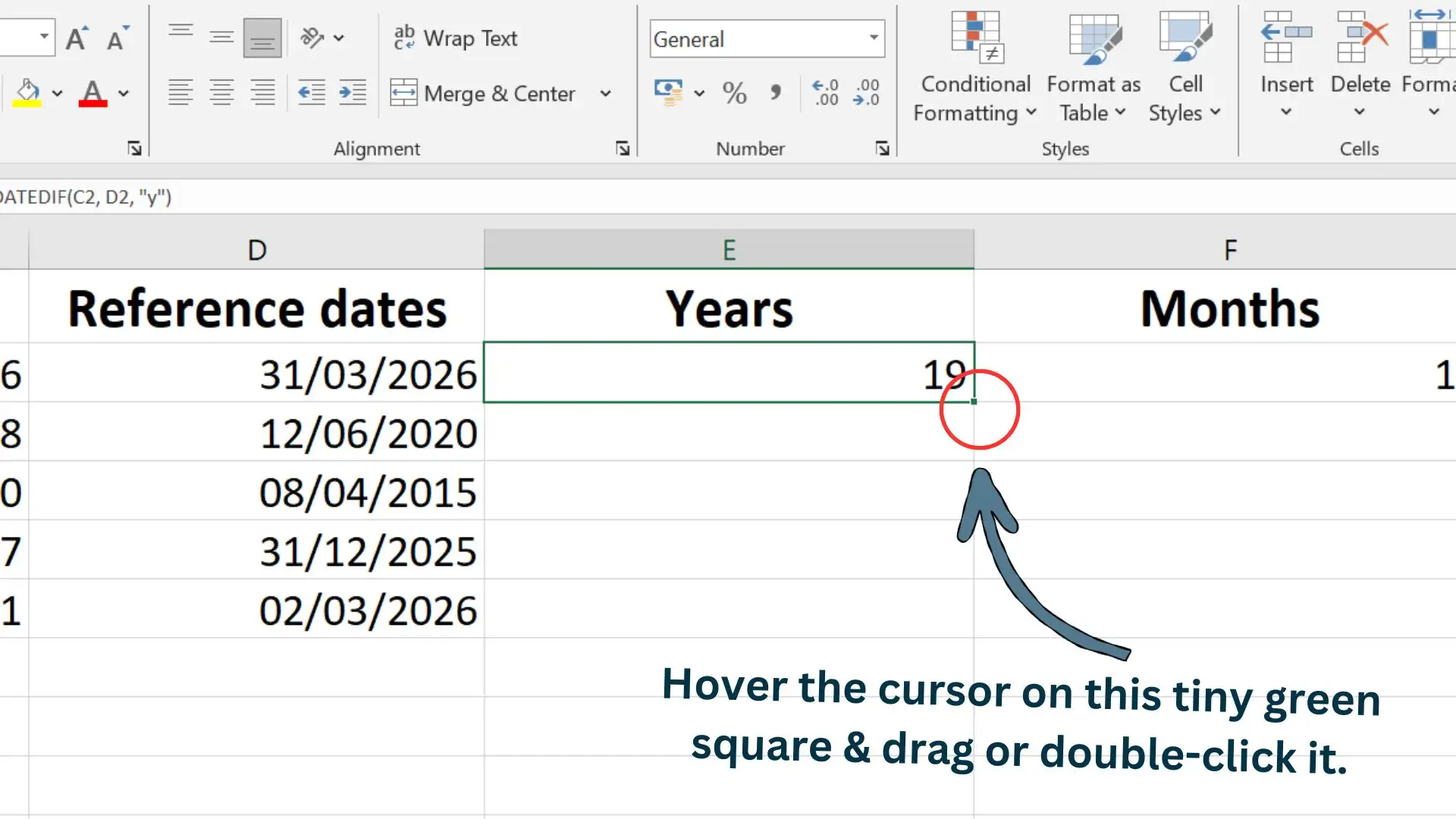
Excel will calculate the age for the whole list quickly.
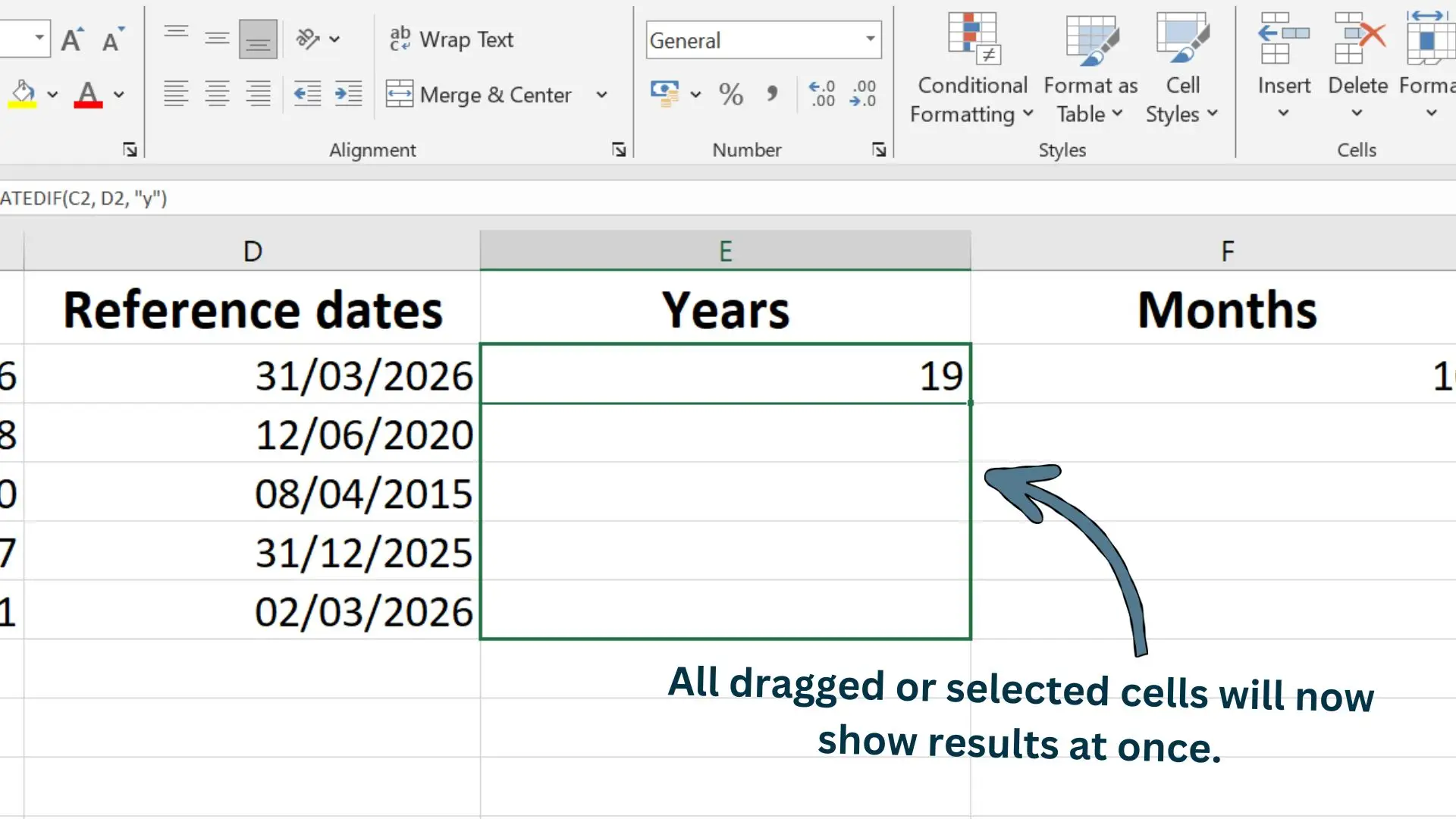
Pro Tip: Fixing the #VALUE! Error
If the Excel shows an error, it’s usually because the dates are formatted as text. Select cells C2 and D2, go to Home Tab> Number and select Short Date.
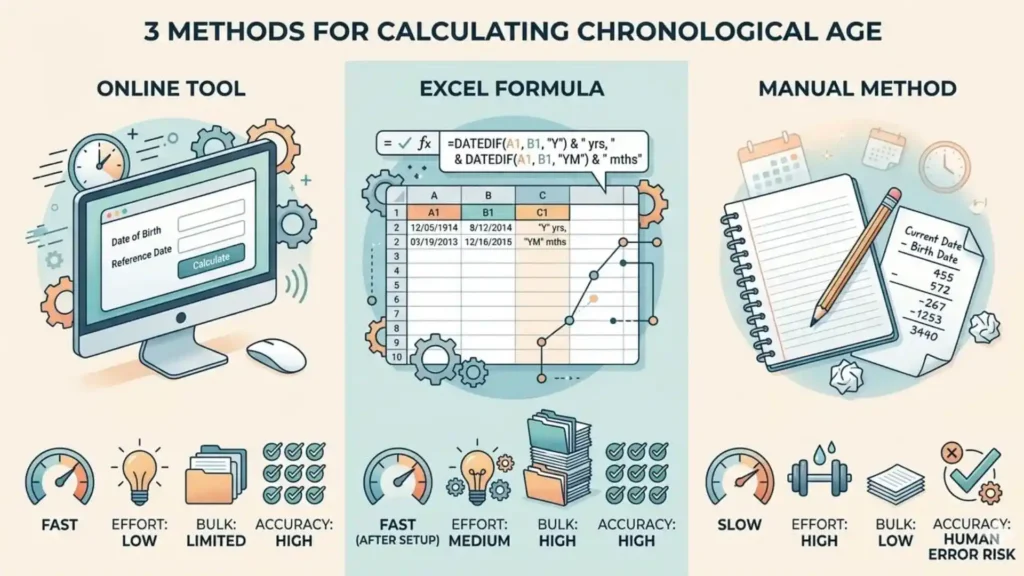
Age Calculation Methods Comparison
| Features | Online Tool | Excel Formula | Manual Method |
|---|---|---|---|
| Processing Speed | Instant (<1s) | Fast | Slow (2-5 mins) |
| Human Effort Needed | Very Low | Medium | High |
| Bulk Handling | No | Yes | No |
| Result Accuracy | Exact (shows every step) | Exact for most dates | Risk of borrowing errors |
| Available On | Any Device | PC/Mobile | Pen & Paper |
Frequently Asked Questions
Conclusion:
Calculating chronological age by hand seems easy and small task, but accuracy here matters a lot. One single mistake can cause issues in school placement, legal documents and in reports by SLPs for tracking developmental milestones.
Whether you choose the traditional manual method to understand the math, the Excel DATEDIF formula for managing large lists, or our chronological age calculator for quick results, accuracy is what truly matters. By using the method of calculation you prefer for your needs, make sure it gives you accurate result and we hope this guide has made the process simple and clear for you.